
You just bought a new controller, and you’re excited to use it. But then you plug it in, and nothing happens. Or it connects, but some buttons don’t work right. I’ve been there, and it’s frustrating.
Let me help you avoid that headache. This guide will show you exactly which controllers work with which devices, how to connect them, and what problems you might run into along the way.
Why Controller Compatibility Actually Matters
Before we get into the technical stuff, let’s talk about why this matters. Not every controller works with every device. Even when they do connect, you might lose features like rumble, motion controls, or even specific buttons.
I learned this the hard way when I tried using my Xbox controller on my iPhone. It connected fine, but in some games, the button mapping was utterly wrong. The A button did what B should do, and it made games almost unplayable.
Understanding compatibility saves you money and frustration. You’ll know precisely what works before you buy anything.
PC Controller Compatibility
PCs are the most flexible when it comes to controllers. Windows especially play nice with almost everything.
Xbox Controllers on PC
Xbox controllers are the easiest option for PC gaming. Microsoft made sure of that.
What works:
- Xbox One controllers (all versions)
- Xbox Series X|S controllers
- Xbox 360 controllers
- Xbox Elite controllers (Series 1 and 2)
How to connect:
- Wired: Plug in the USB cable. Windows installs drivers automatically.
- Wireless: Use the Xbox Wireless Adapter for Windows or connect via Bluetooth if your controller supports it.
The newer Xbox Series controllers have Bluetooth built in. The older Xbox One controllers only have Bluetooth if they came after 2016. You can tell by looking at the plastic around the Xbox button. If it’s the same color as the front of the controller, it has Bluetooth. If it’s different, it doesn’t.
PlayStation Controllers on PC
PlayStation controllers work on PC, but you’ll need some extra software for the best experience.
What works:
- DualShock 4 (PS4 controller)
- DualSense (PS5 controller)
- DualSense Edge
How to connect:
- Wired: USB cable works immediately in most games
- Wireless: Bluetooth pairing or Sony’s official wireless adapter
Here’s the catch. Many PC games don’t recognize PlayStation controllers natively. Steam has built-in support that works great, but outside of Steam, you’ll want to download DS4Windows (for DualShock 4) or DualSenseX (for DualSense).
These programs trick your PC into thinking the PlayStation controller is an Xbox controller. Games recognize it instantly after that.
Special features that work on PC:
- DualSense adaptive triggers (only in supported games)
- Haptic feedback (limited support)
- Touchpad (works as a mouse in some configurations)
- Motion controls (with the right software)
Generic and Third-Party Controllers on PC
Most USB controllers work on a PC without any setup. Logitech, Razer, 8BitDo, and other brands usually have Windows drivers ready to go.
The problem comes with older controllers or weird off-brand ones. Sometimes Windows recognizes them, but games don’t. In those cases, try a program called x360ce (Xbox 360 Controller Emulator). It makes your controller pretend to be an Xbox 360 controller, which almost every PC game supports.
PlayStation Console Controller Compatibility
Sony keeps things simple but also pretty locked down.
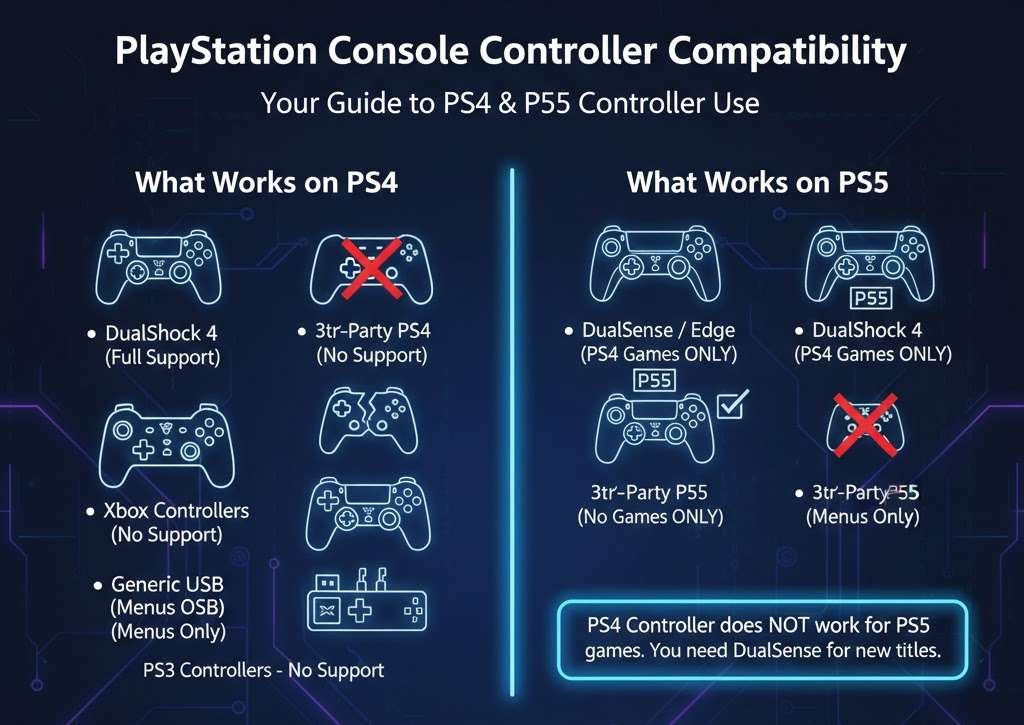
What Works on PS4
- DualShock 4 (official PS4 controller) – full support
- Third-party licensed PS4 controllers – usually full support
- Xbox controllers – don’t work at all
- Generic USB controllers – might work for PS4 menus, but not games
- PlayStation 3 controllers – don’t work
What Works on PS5
- DualSense (official PS5 controller) – full support
- DualSense Edge – full support
- DualShock 4 – works for PS4 games played on PS5, but NOT for PS5 games
- Third-party licensed PS5 controllers – full support
- Xbox controllers – don’t work
- Generic controllers – menu navigation only
That DualShock 4 limitation on PS5 games is a big deal. You can use your PS4 controller to play PS4 games on your PS5, but if you want to play actual PS5 games, you need a DualSense. Sony did this to push the new controller features, but it also means buying new controllers if you upgrade consoles.
Specialty Controllers on PlayStation
Some people need specialty controllers for accessibility. Sony supports several officially licensed options:
- HORI Fighting Commander works on both PS4 and PS5
- Razer Raiju works, but needs firmware updates sometimes
- Nacon Revolution controllers work with proper licensing
- Xbox Adaptive Controller does NOT work (huge oversight by Sony)
Xbox Console Controller Compatibility
Microsoft takes a more open approach than Sony.
What Works on Xbox Series X|S
- Xbox Series controllers – full support
- Xbox One controllers – full support (all versions)
- Xbox 360 controllers – don’t work
- PlayStation controllers – don’t work
- Licensed third-party controllers (PowerA, Razer, etc.) – full support
- Some specialty controllers – full support
What Works on Xbox One
- Xbox One controllers – full support
- Xbox Series controllers – full support (yes, the newer ones work on older consoles)
- Xbox 360 controllers – don’t work
- PlayStation controllers – don’t work
- Licensed third-party controllers – usually full support
The backwards compatibility here is excellent. If you buy a new Xbox Series controller, it works perfectly with your old Xbox One. That’s rare in the console world.
Xbox Adaptive Controller
This deserves special mention. The Xbox Adaptive Controller works across all Xbox consoles and Windows PCs. It’s designed for gamers with limited mobility, and it’s honestly one of the best things Microsoft has ever made.
You can plug in switches, buttons, and other accessibility devices to customize it however you need. It works wirelessly or wired, and games treat it like any other Xbox controller.
Android Controller Compatibility
Android is messy. Different Android versions support different things, and some phone manufacturers block features.
What Generally Works on Android
Most modern controllers connect to Android phones and tablets via Bluetooth. Here’s what usually works:
Full support (most games recognize them):
- Xbox One controllers (2016 model and newer with Bluetooth)
- Xbox Series controllers
- PlayStation DualShock 4
- PlayStation DualSense
- Stadia Controller (via USB cable or Bluetooth after Google’s update)
- Razer Kishi and similar phone clip controllers
- 8BitDo controllers
- SteelSeries Stratus controllers
Partial or hit or miss support:
- Generic Bluetooth controllers (might need button remapping)
- Older controllers without Bluetooth
- Nintendo Switch Pro Controller (connects, but button mapping is weird)
How to Connect Controllers to Android
For Xbox and PlayStation controllers:
- Put your controller in pairing mode. On Xbox, hold the pairing button on top. On PlayStation, hold Share and PlayStation buttons together until the light bar flashes.
- Open Android Settings and go to Bluetooth.
- Look for your controller in the available devices list.
- Tap to pair
Some Android games don’t support controllers at all. Mobile games designed for touch screens often won’t work. But games like Call of Duty Mobile, PUBG Mobile, Genshin Impact, and emulators all work great with controllers.
Android Version Matters
Android 10 and newer have much better controller support than older versions. If you’re on Android 9 or older, you might need apps like Octopus or Panda Gamepad Pro to map controller buttons properly.
Phone Specific Issues I’ve Encountered
Samsung phones usually work great with controllers. Google Pixels, too. But some cheaper phones from brands like Realme or Xiaomi sometimes have Bluetooth issues that cause input lag or disconnections.
If you get lag, try:
- Turning off battery optimization for Bluetooth
- Keeping your phone closer to the controller
- Disconnecting other Bluetooth devices
- Restarting both devices
iOS Controller Compatibility
Apple is good about controller support, but they’re picky about which ones work.
What Works on iPhone and iPad
Apple officially supports these controllers:
- Xbox One controllers (Bluetooth models from 2016 onward)
- Xbox Series controllers
- Xbox Elite Series 2 controller
- PlayStation DualShock 4
- PlayStation DualSense
- MFi (Made for iPhone) certified controllers like:
- Backbone One
- Razer Kishi for iPhone
- SteelSeries Nimbus
- GameSir controllers with MFi certification
What Doesn’t Work on iOS?
- Xbox 360 controllers
- Generic Bluetooth controllers without MFi certification
- Nintendo Switch controllers (they connect, but most games don’t recognize them)
- Most third-party controllers that aren’t MFi certified
Apple requires iOS 13 or later for Xbox and PlayStation controller support. If you’re on iOS 12 or older, only MFi controllers work.
Connecting Controllers to iPhone or iPad
For Xbox and PlayStation controllers:
- Put the controller in pairing mode
- Open Settings on your iPhone
- Tap Bluetooth
- Wait for the controller to appear
- Tap it to connect
After the first pairing, the controller usually reconnects automatically when you turn it on near your device.
iOS Gaming with Controllers
Apple Arcade games almost always support controllers. Many App Store games do too, especially premium games and ports of console games.
But like Android, many free-to-play mobile games don’t support controllers. Clash of Clans, Candy Crush, and similar games are touch-only.
Button Remapping on iOS
iOS 14 added button remapping for controllers. Go to Settings, Accessibility, then Controllers to customize button layouts. This helps if a game has weird default mapping.
Cross-Platform Controller Use
Here’s the real question everyone asks. Can I use one controller for everything?
The Universal Controller Dream
Best option for maximum compatibility: Xbox Series Controller
This controller works on:
- PC (Windows, wired and wireless)
- Xbox consoles (all Xbox One and Series models)
- Android (Bluetooth)
- iOS (Bluetooth)
- Some smart TVs
- Cloud gaming services (xCloud, GeForce Now, etc.)
It doesn’t work natively on PlayStation or Nintendo Switch.
Second-best option: PlayStation DualSense
This controller works on:
- PC (wired and wireless, with some extra setup)
- PlayStation 5 (full features)
- PlayStation 4 (for PS4 games only)
- Android (Bluetooth)
- iOS (Bluetooth)
- Cloud gaming services
It doesn’t work on Xbox or Switch.
Controllers That Work Almost Nowhere
Nintendo Switch controllers are frustratingly limited. The Pro Controller and Joy-Cons basically only work well on the Switch itself. You can connect them to a PC or Android with some effort, but button mapping is usually wrong, and it’s more hassle than it’s worth.
Wireless vs Wired Connections
Let’s talk about connection types because they matter more than you might think.
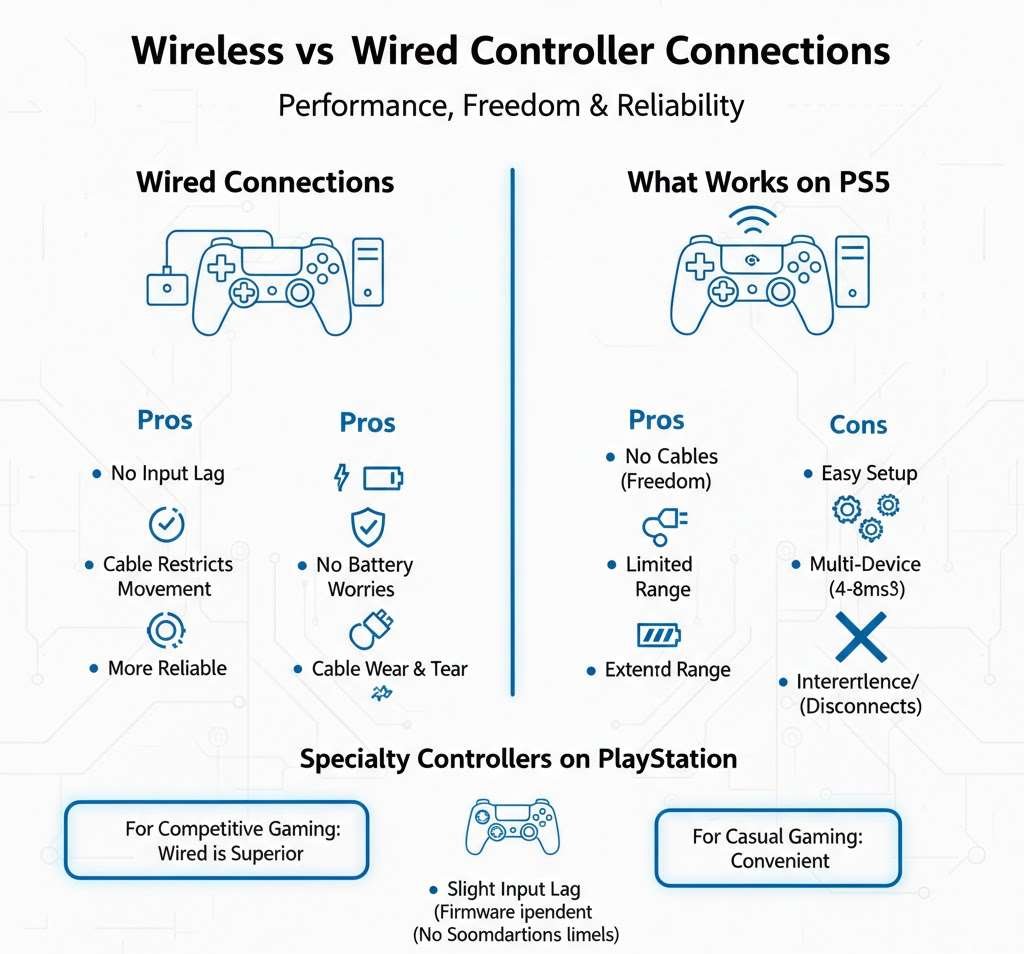
Wired Connections
Pros:
- No input lag
- No battery worries
- More reliable
- Works even if Bluetooth is broken
Cons:
- Cable can get in the way
- Limited movement range
- The cable might wear out over time
For competitive gaming, wired is still better. The difference is slight, but it’s there.
Bluetooth Connections
Pros:
- No cables
- Easy to set up
- Works across many devices
- Can sit farther from your device
Cons:
- Slight input lag (usually 4-8ms)
- Battery life concerns
- Bluetooth interference from other devices
- Sometimes disconnects randomly
Most people won’t notice Bluetooth lag in single-player games. For shooters or fighting games, some people prefer wired.
Proprietary Wireless (Xbox Wireless, etc.)
Xbox controllers can use Microsoft’s proprietary wireless protocol on Xbox consoles and PCs with the wireless adapter. This is better than Bluetooth:
- Lower latency
- Better range
- More stable connection
- Supports more features
But it requires a wireless adapter for a PC, which costs extra.
Troubleshooting Common Controller Problems
I’ve spent hours fixing controller issues. Here are the solutions that actually work.
Controller Won’t Connect
Try this in order:
- Make sure the controller is charged or has batteries
- Put it in pairing mode properly (hold the pairing button long enough)
- Turn Bluetooth off and on again on your device
- Forget the controller from Bluetooth settings and re-pair
- Update your device’s operating system
- Update the controller firmware (Xbox and PlayStation have apps for this)
- Try a different USB cable if going wired
- Restart everything
Buttons Don’t Work Right
This usually means the game doesn’t recognize your controller type. Solutions:
- Check if the game supports controllers at all
- Try running the game through Steam (even non-Steam games can use Steam’s controller support)
- Use emulation software like DS4Windows or x360ce
- Check for button remapping options in game settings
- Update the game (patches sometimes add controller support)
Controller Keeps Disconnecting
Bluetooth disconnections are annoying. Try:
- Moving closer to your device
- Charging the controller (low battery causes disconnects)
- Removing other Bluetooth devices from the area
- Turning off power saving features for Bluetooth
- Using a wired connection instead
- Checking for firmware updates
Input Lag or Delay
If there’s a noticeable delay between pressing buttons and seeing results:
- Use a wired connection instead of wireless
- Close other apps that might be using system resources
- Turn off VSync in game settings (this can add lag)
- Check if Game Mode is enabled on your TV (for consoles)
- Make sure your controller firmware is up to date
- Try a different USB port (USB 2.0 sometimes has fewer issues than 3.0 for controllers)
Buying the Right Controller for Your Setup
Let me save you some money and regret.
If You Game Mostly on PC
Buy an Xbox Series controller. It’s plug and play, works in every game, and the build quality is solid. I’ve had mine for two years with zero issues.
If you want something fancier, the Xbox Elite Series 2 adds customizable buttons, trigger locks, and better grips. It costs more but lasts forever.
If You Game on PlayStation
You need a DualSense for PS5 games. There’s no way around it. But they’re expensive, so consider:
- Buying one DualSense and keeping your DualShock 4 controllers for PS4 games
- Waiting for sales (they go on sale around Black Friday)
- Third-party options like the Victrix Pro or Scuf Reflex are good but expensive
If You Game on Mobile
The best mobile controllers attach directly to your phone. The Backbone One and Razer Kishi are both excellent. They charge your phone while you play, have no lag because they connect via the charging port, and feel like a real console controller.
For tablets, a regular Xbox or PlayStation controller with a tablet stand works great.
If You Want One Controller for Everything
The Xbox Series controller gives you the most compatibility. But remember, it won’t work on PlayStation or Switch consoles.
If you need something that works on literally every system, the 8BitDo Pro 2 is worth looking at. It has a switch that changes modes for different devices. It works on:
- PC
- Android
- iOS (in some modes)
- Nintendo Switch
- Raspberry Pi and retro consoles
It doesn’t work on Xbox or PlayStation consoles, but it covers a lot of ground.
Future Proofing Your Controller Purchase
Controllers are expensive. Here’s how to make sure yours stays useful.
Look for Bluetooth Support
Any controller without Bluetooth is already outdated. Make sure whatever you buy has Bluetooth built in.
Replaceable Parts Matter
Controllers with replaceable thumbsticks, batteries, and buttons last longer. The Xbox Elite controllers let you swap parts. Some third-party brands like 8BitDo also have replaceable components.
Firmware Updates
Controllers that receive firmware updates stay compatible with new devices and games. Xbox, PlayStation, and major third-party brands all push updates. Cheap, no-name controllers never get updates.
Build Quality Over Features
A basic controller that lasts five years is better than a feature-packed controller that breaks in six months. Microsoft and Sony controllers have good build quality. Most licensed third-party controllers do too. Random Amazon brands with names like “GAMER PRO X ELITE” usually don’t.
Examples from My Gaming Setup
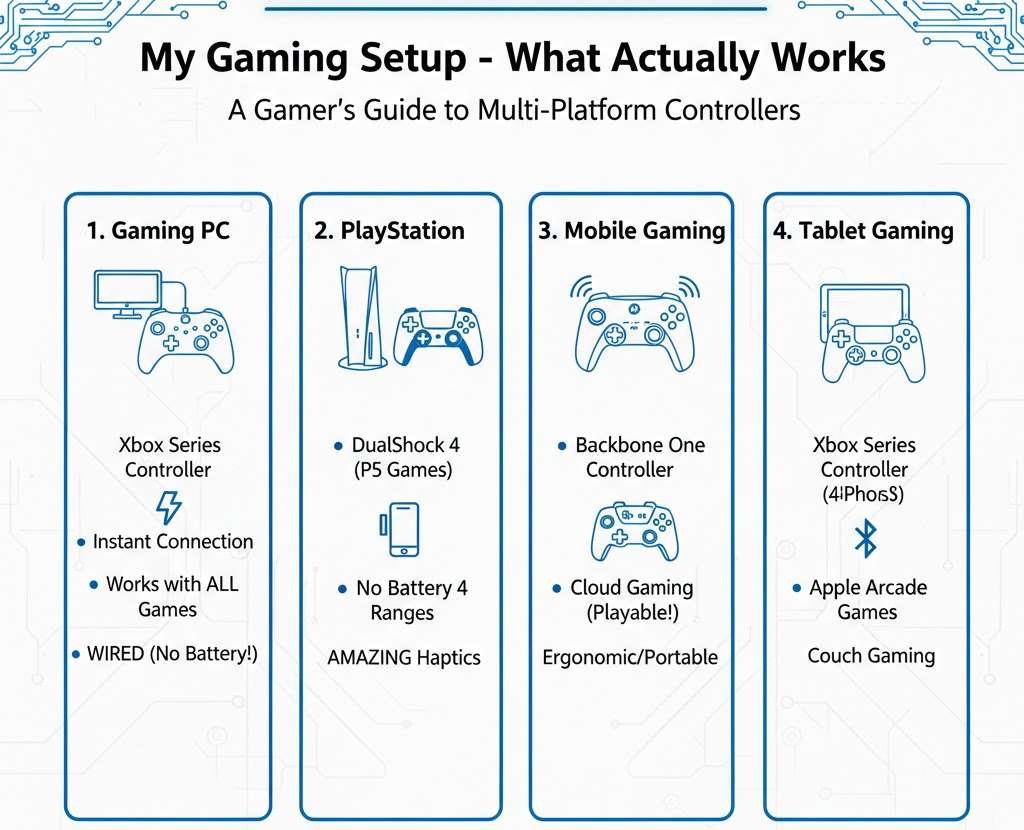
Let me show you what actually works in my daily gaming life.
I have:
- A gaming PC
- PlayStation 5
- An Android phone
- An iPad
For PC gaming, I use an Xbox Series controller. It connects instantly, works in every game, and I’ve never had a single issue with it. I keep it plugged in with a long USB cable because I hate charging batteries.
For PS5, I obviously use the DualSense. The haptic feedback in games like Returnal and Astro’s Playroom is legitimately excellent. I also kept one DualShock 4 around for playing PS4 games.
For mobile gaming, I have a Backbone One attached to my iPhone. It made cloud gaming actually playable. Before that, I tried using my Xbox controller with my phone, but holding the phone while using a separate controller felt awkward.
For my iPad, I use the same Xbox controller from my PC. I pair it via Bluetooth when I want to play Apple Arcade games on the couch.
This setup cost me:
- Xbox Series controller: $60
- DualSense: $70
- Backbone One: $100
- Total: $230
That might seem like a lot, but these controllers work for everything I do. I haven’t needed to buy another controller in two years.
What About Specialty Controllers
Some people need different controller types. Let me cover a few.
Fight Sticks
Fighting game players swear by arcade sticks. They work best on:
- PC (almost all sticks have PC support)
- PlayStation (get one specifically marked for PS4/PS5)
- Xbox (get one specifically marked for Xbox)
Most fight sticks don’t work across different console brands. A PlayStation stick won’t work on Xbox and vice versa. But almost all of them work on a PC.
Racing Wheels
Racing wheels are similar to fight sticks. Buy for your specific platform. The Logitech G29 works on PlayStation and PC. The G920 works on Xbox and PC. They’re the same wheel, just with different compatibility.
Flight Sticks
These mainly work on a PC. Console support for flight sticks is rare outside of specific games like Microsoft Flight Simulator on Xbox.
Accessibility Controllers
Microsoft’s Xbox Adaptive Controller works on Xbox and PC. It’s the gold standard. Sony doesn’t have an equivalent, which is honestly disappointing.
Other companies make accessible controllers, but check compatibility carefully before buying. They’re expensive, and returning them can be complicated.
Quick Reference Compatibility Table
Here’s a simple breakdown of what works where:
| Controller Type | PC | PS5 | Xbox | Android | iOS |
|---|---|---|---|---|---|
| Xbox Series | Yes | No | Yes | Yes | Yes |
| Xbox One (Bluetooth) | Yes | No | Yes | Yes | Yes |
| Xbox 360 | Yes | No | No | No | No |
| DualSense | Yes* | Yes | No | Yes | Yes |
| DualShock 4 | Yes* | PS4 games only | No | Yes | Yes |
| Nintendo Switch Pro | Yes* | No | No | Yes* | No |
| Generic Bluetooth Controller | Yes* | No | No | Yes* | No |
| MFi Controllers | Limited | No | No | Some | Yes |
My Final Recommendations
After years of dealing with controller compatibility, here’s what I tell people:
- For most people: Buy an Xbox Series controller. It works almost everywhere and causes zero headaches.
- For PlayStation gamers: Get a DualSense for PS5 games. Keep your old DualShock 4 for backward-compatible games if you want to save money.
- For mobile gaming: Get a controller that clips to your phone like the Backbone One or Razer Kishi. They’re more expensive than regular controllers, but the experience is so much better.
- For PC only: Xbox controller is easiest, but if you want the best features, consider the DualSense for its haptics and adaptive triggers (in supported games).
- For everything: Nothing works on literally everything, but the Xbox Series controller gets you the furthest.
Wrapping This Up
Controller compatibility doesn’t have to be confusing. The main things to remember:
Xbox controllers work on most things except PlayStation. PlayStation controllers work on most things except Xbox. Both work fine on PC and mobile with varying amounts of setup.
Buy for your central gaming platform first. If you mostly play on PlayStation, get a DualSense even if it needs extra work on PC. If you mostly play on PC or mobile, get an Xbox controller.
Don’t waste money on cheap controllers hoping they’ll work everywhere. They won’t. Buy from major brands, and you’ll have fewer problems.
And if something doesn’t work, don’t assume it’s broken. Check the settings, update firmware, and try the troubleshooting steps I mentioned. Most controller problems have simple fixes.
Now you know what works, what doesn’t, and how to fix it when things go wrong. Enjoy your games without worrying about whether your controller will actually work.