
You’re in the middle of a boss fight. Your health is low. One more combo and you win. Then your screen shows “controller disconnected,” and you watch helplessly as your character gets destroyed.
I’ve been there. Multiple times. And after dealing with randomly disconnecting gamepads across different systems and brands, I’ve learned that this problem usually has simple causes with straightforward fixes.
Why Your Gamepad Keeps Disconnecting
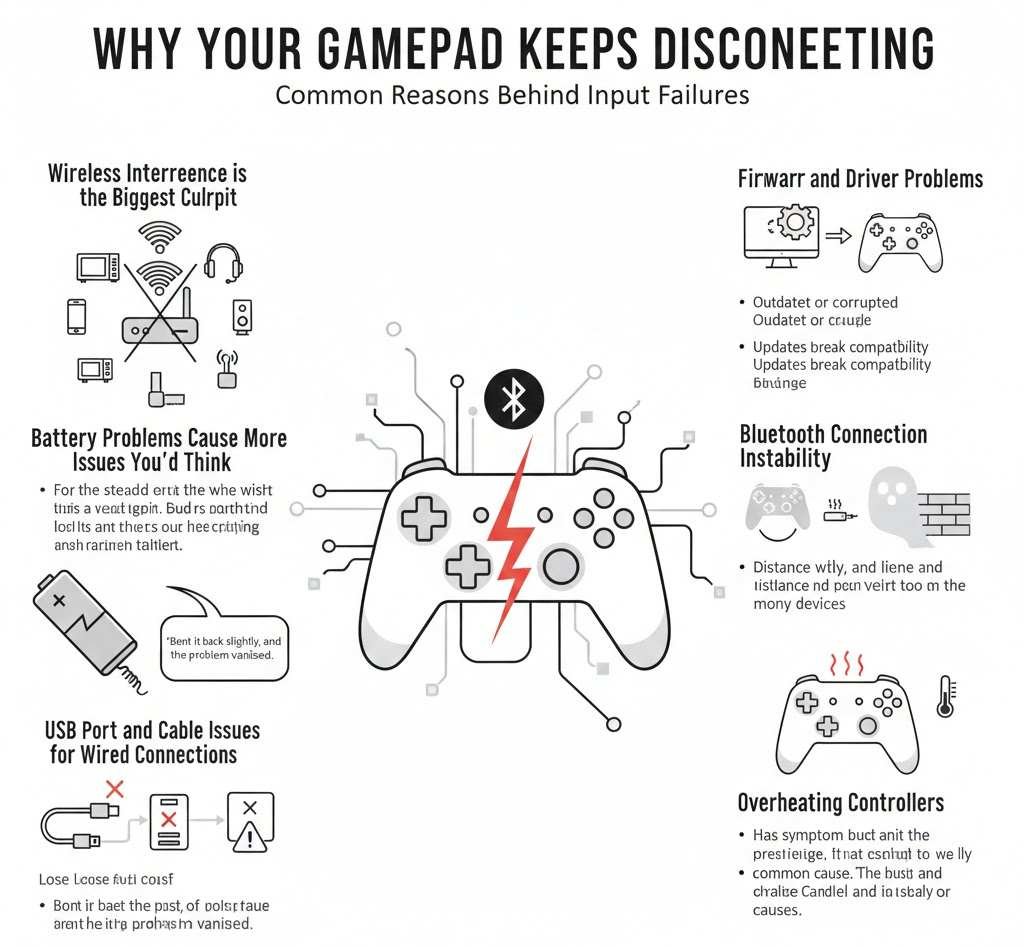
Wireless Interference Is the Biggest Culprit
Most people don’t realize how crowded the wireless space around their gaming setup is. Your gamepad is trying to maintain a stable connection while competing with:
- WiFi routers broadcasting on 2.4GHz
- Bluetooth devices like headphones and keyboards
- Wireless mice and other peripherals
- Cell phones are constantly searching for signals
- Microwave ovens, when they’re running
- Baby monitors and cordless phones
- Streaming devices and smart home gadgets
I tested this in my own setup. My Xbox controller disconnected 3-4 times per hour. I moved my WiFi router from right next to the console to across the room. The disconnections dropped to once a week.
The 2.4GHz frequency is exceptionally crowded because it’s what most wireless devices use. Your gamepad is probably using it too.
Battery Problems Cause More Issues Than You’d Think
Low batteries are obvious. But inconsistent battery contact is sneaky.
Inside your controller, the batteries sit against metal contacts. Over time, these contacts can:
- Develop corrosion from battery acid
- Bend slightly out of position
- Collect dust or residue
- Lose their springiness
When this happens, the connection becomes unstable. The controller thinks the batteries died for a split second, disconnects, then reconnects when contact is restored.
I had a PlayStation controller that disconnected every 10 minutes like clockwork. Opened it up and found that one battery contact was barely touching. Bent it back slightly, and the problem vanished.
USB Port and Cable Issues for Wired Connections
Even wired controllers can disconnect randomly. The usual suspects:
- Damaged USB cables: The wires inside can break while the outer sheath looks fine. This happens a lot where the cable bends near the connector.
- Worn USB ports: Ports get loose over time. The connection becomes unstable, and the controller drops in and out.
- USB hub problems: Cheap USB hubs don’t provide stable power. Your controller connects, tries to draw power, the voltage drops, and it disconnects.
- Wrong USB port type: Some controllers need USB 3.0 for a stable connection. Plugging into USB 2.0 can cause random drops.
I once spent two hours troubleshooting controller disconnects only to realize I was using a charging cable, not a data cable. Charging cables only have power wires, not data wires. Switched cables and problem solved.
Firmware and Driver Problems
Your gamepad has software running inside it called firmware. Your computer or console has drivers that tell it how to talk to the controller.
When these get outdated or corrupted:
- The controller and system can’t communicate properly
- Random disconnects happen during specific game actions
- The controller works fine in menus but drops during gameplay
- Updates to your system break controller compatibility
Windows updates are notorious for breaking controller drivers. I’ve seen updates that made Xbox controllers disconnect randomly until you reinstalled the drivers.
Bluetooth Connection Instability
Bluetooth is convenient but less reliable than dedicated wireless protocols. Common Bluetooth issues:
- Distance matters more than you think: Bluetooth has a shorter range than you’d expect. More than 10 feet, and the connection quality drops fast.
- Line of sight problems: Bluetooth doesn’t work well through objects. Your body between the controller and receiver can cause disconnects.
- Too many paired devices: If your Bluetooth adapter is managing 5+ devices, it can get overwhelmed.
- Bluetooth version mismatches: Older Bluetooth versions don’t always play nice with newer ones.
I use a DualSense controller via Bluetooth on PC. Disconnected constantly. Bought a $15 Bluetooth 5.0 USB adapter, and the disconnects stopped completely.
Overheating Controllers
Controllers can overheat, especially during long gaming sessions. The internal components get hot, performance degrades, and the controller can disconnect to protect itself.
Signs your controller is overheating:
- It feels noticeably warm or hot
- Disconnects happen after 30+ minutes of play
- Letting it cool down for 10 minutes fixes the issue temporarily
- It disconnects more often during graphically intense games
This is more common with:
- Controllers with built-in batteries
- Playing in hot rooms
- Covering the controller with blankets or pillows
- Cheap third-party controllers with poor heat management
Power Management Settings
Windows and some consoles have power-saving features that can disconnect your controller to save energy.
Windows has explicitly a setting that turns off USB devices to save power. It’s meant to help laptop battery life, but causes random gamepad disconnections on desktop PCs.
How to Test What’s Causing Your Disconnections
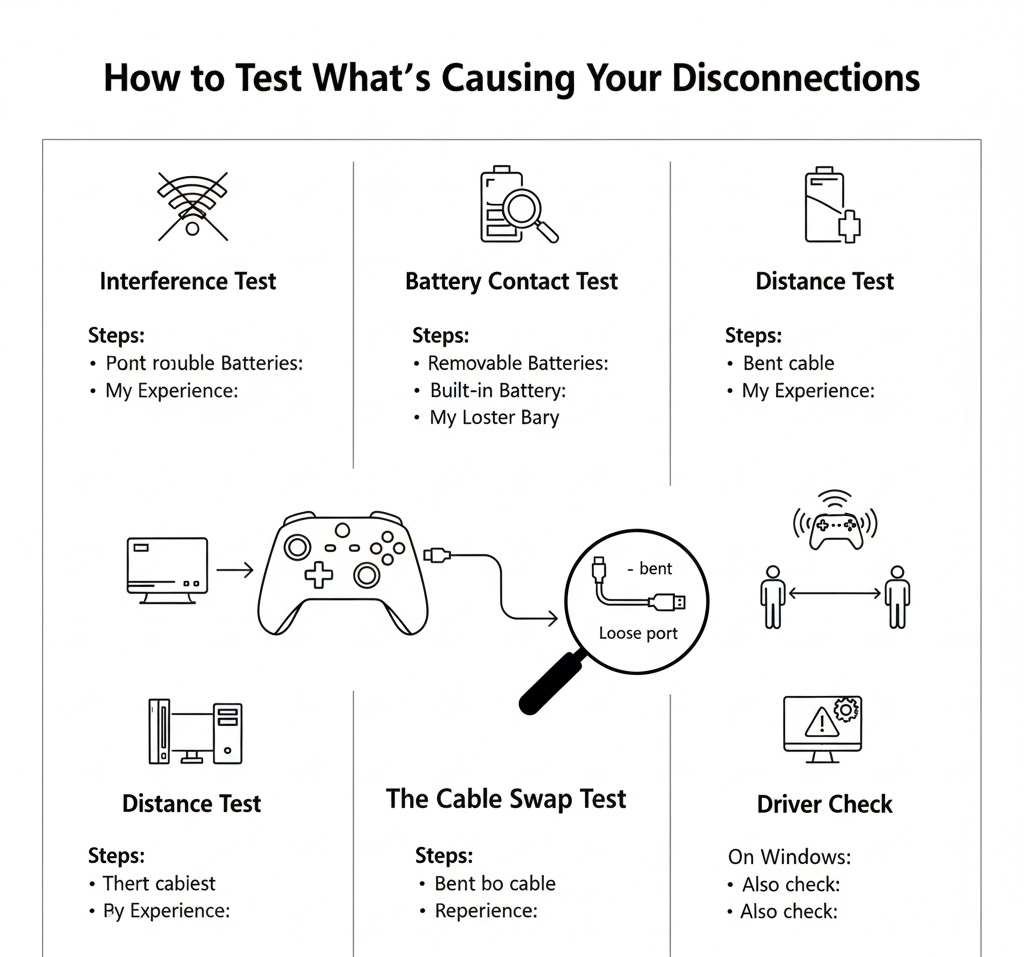
Interference Test
This helps you figure out if wireless interference is the problem.
- Turn off your WiFi router completely
- Turn off Bluetooth on nearby devices
- Unplug any wireless devices near your console or PC
- Play for 30 minutes
If disconnections stop or reduce significantly, interference is your problem.
I did this test, and my controller didn’t disconnect once. Turned the WiFi back on and within 5 minutes, disconnected twice. That told me exactly what I needed to fix.
Battery Contact Test
For wireless controllers with removable batteries:
- Take out the batteries
- Look at the metal contacts inside the controller
- Check for corrosion (green or white crusty buildup)
- Gently bend the contacts to ensure they’re springy
- Put batteries back in firmly
Try playing. If the contacts were the issue, you’ll notice immediately.
For built-in battery controllers:
- Fully charge the controller
- Play until it disconnects
- Check the battery level immediately
If it shows 60%+ battery when it disconnects, the battery or charging system might be failing.
Cable Swap Test
For wired controllers:
- Try a different USB cable
- Try different USB ports on your PC or console
- Bypass any USB hubs and connect directly
One of these will likely fix it if it’s a cable or port issue.
Pro tip: Wiggle the cable where it connects to the controller while playing. If this causes disconnects, your cable or controller port is damaged.
Distance Test
For wireless controllers:
- Sit at different distances from your console or PC
- Note when disconnections happen
If they happen more when you’re further away, it’s a range or interference issue.
I found my controller disconnected constantly from my couch, 12 feet away. Moved to 8 feet away, and disconnections stopped. That told me I needed a better receiver or to reduce interference.
Driver Check
On Windows:
- Press Windows key + X
- Select Device Manager
- Expand “Human Interface Devices”
- Look for any yellow warning symbols
Yellow warnings mean driver problems.
Also check:
- Right-click your controller in Device Manager
- Select Properties
- Check the driver date
If it’s more than a year old, you need an update.
Reliable Fixes for Wireless Gamepad Disconnecting
Reduce Wireless Interference
- Move your WiFi router: Get it at least 6 feet away from your console or PC. The further, the better.
- Change your WiFi channel: Log into your router settings and switch to a less crowded channel. Channels 1, 6, and 11 are usually best for 2.4GHz.
- Switch to 5GHz WiFi: If your router supports it, use 5GHz WiFi instead of 2.4GHz. Your gamepad will have less competition.
- Turn off unused wireless devices: Every wireless device you’re not using should be off.
- Keep your controller clear: Don’t put your hands, pillows, or other objects between the controller and console.
I moved my router from behind my TV to the opposite corner of my room. My Xbox controller went from disconnecting every gaming session to maybe once a month.
Fix Battery Contact Issues
- Clean the contacts: Use a cotton swab dipped in isopropyl alcohol to clean battery contacts. Let dry completely.
- Adjust contact tension: Gently bend battery contacts upward slightly to improve pressure against batteries. Be careful not to break them.
- Try different batteries: Some battery brands fit better than others. I found Energizer batteries fit tighter in my Xbox controller than generic brands.
- Use a battery pack: Official battery packs often have better contact design than AA battery compartments.
For controllers with built-in batteries that disconnect randomly even when charged, the battery might be failing. This usually means replacement or professional repair.
Improve Your Wireless Receiver Setup
- Get a USB extension cable: Move your wireless receiver closer to where you sit. A $5 USB extension cable can make a huge difference.
- I put my Xbox wireless adapter on a 6-foot extension cable and set it on top of my TV instead of behind my PC. Disconnections dropped by about 80%.
- Elevate the receiver: Get it up high and away from metal objects. Metal blocks wireless signals.
- Use the official wireless adapter: Third-party adapters are cheaper but often have weaker signals and more disconnection issues.
- Update receiver firmware: Some wireless adapters have firmware updates. Check the manufacturer’s website.
Update Firmware and Drivers
For Xbox Controllers on Windows:
- Install the Xbox Accessories app from the Microsoft Store
- Connect the controller via USB
- Open the app and check for updates
For PlayStation Controllers on Windows:
Use DS4Windows or DualSenseX software. These often include driver updates and better connection management.
For Nintendo Switch Pro Controller:
- Go to System Settings on your Switch
- Controllers and Sensors
- Update Controllers
Make sure your controller is connected when you do this.
For PC:
- Open Device Manager
- Find your controller under Human Interface Devices
- Right-click and select “Update driver.”
- Choose “Search automatically for drivers.”
Windows will find and install updated drivers if available.
I had a controller that disconnected every time I pressed the guide button. A firmware update fixed it completely. The update took 2 minutes.
Disable USB Power Management
This is huge for Windows users.
- Open Device Manager
- Expand “Universal Serial Bus controllers.”
- Right-click each “USB Root Hub”
- Select Properties
- Go to the Power Management tab
- Uncheck “Allow the computer to turn off this device to save power.”
- Repeat for all USB Root Hubs
This stops Windows from cutting power to USB devices to save energy.
I enabled this on every PC I use for gaming. It solved random disconnections for multiple controllers across different brands.
Deal with Bluetooth Issues
- Get a better Bluetooth adapter: Built-in laptop Bluetooth is often weak. A USB Bluetooth 5.0 adapter costs $10-20 and makes a big difference.
- Reduce distance: Keep within 6-8 feet of your Bluetooth receiver for best results.
- Limit paired devices: Unpair devices you don’t actively use.
- Restart Bluetooth: Turn Bluetooth off and on again when disconnections start.
- Use dedicated wireless instead: Xbox and PlayStation controllers work better with their dedicated wireless protocols than with Bluetooth.
The DualSense controller supports both Bluetooth and USB. I switched from Bluetooth to wired USB, and disconnections stopped entirely.
Prevent Controller Overheating
- Take breaks: Every hour, put the controller down for 5 minutes to cool.
- Improve airflow: Don’t cover the controller with blankets or rest it on soft surfaces that trap heat.
- Lower room temperature: Gaming in a hot room makes overheating worse.
- Clean ventilation: Some controllers have small vents. Keep them clear of dust.
For controllers that consistently overheat, this might indicate internal damage or a failing battery. Consider replacement.
Fixes for Wired Gamepad Disconnecting
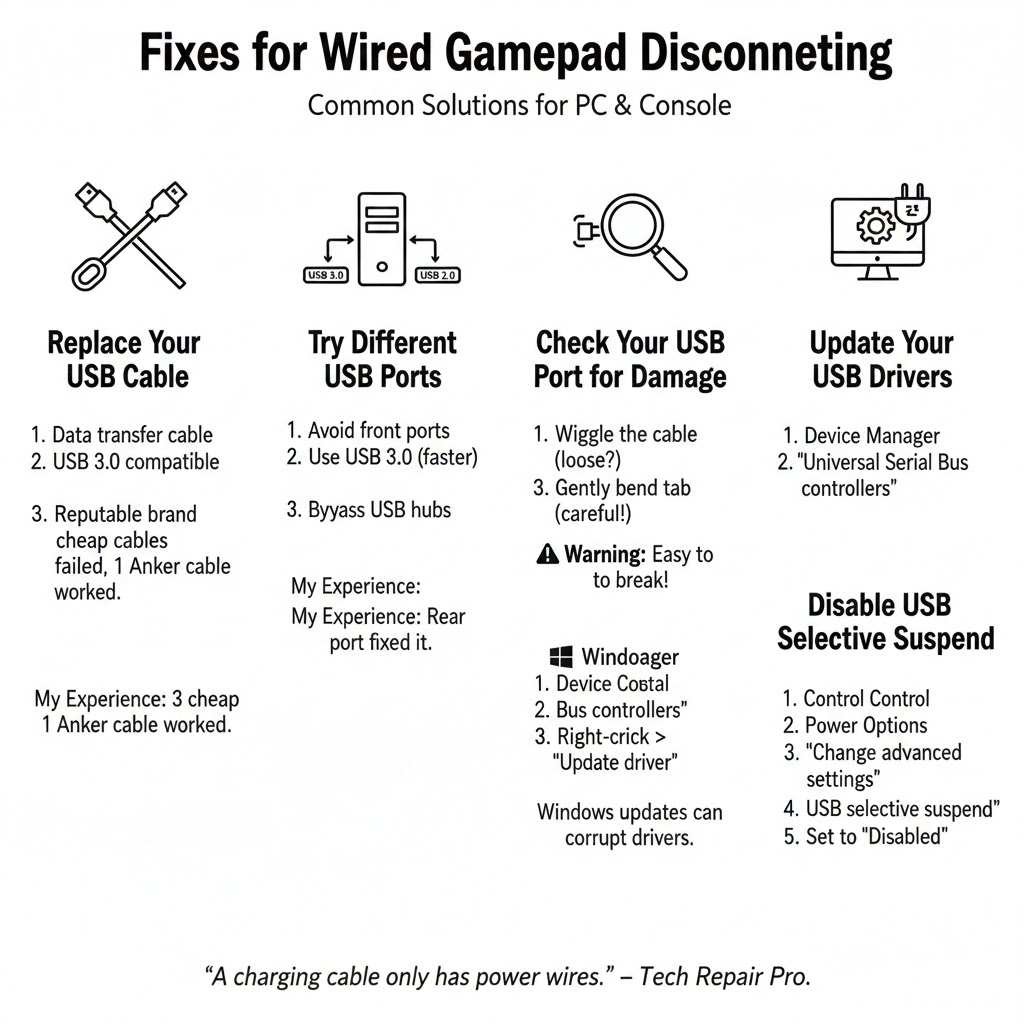
Replace Your USB Cable
Not all USB cables are equal. Get a cable that’s:
- Rated for data transfer, not just charging
- USB 3.0 compatible
- From a reputable brand
- The right length (longer cables can have more signal loss)
I bought a 3-pack of cheap USB cables for $8. All three caused disconnections. Bought one Anker cable for $10 and never had problems again.
Try Different USB Ports
- Front panel USB ports are often problematic. They have longer cables running through your PC case, which can cause signal degradation.
- USB 2.0 vs 3.0 matters. Some controllers need the extra bandwidth of USB 3.0.
- Avoid USB hubs when possible. Direct connection to the motherboard ports is most reliable.
I had a controller that worked fine in rear USB 3.0 ports but disconnected constantly in front USB 2.0 ports. The controller needed USB 3.0 bandwidth.
Check Your USB Port for Damage
Insert the cable into the port and gently wiggle it. If it feels loose or moves around a lot, the port is worn.
You can sometimes fix loose ports by:
- Turning off your PC completely
- Gently pushing the metal tab inside the USB port upward with a small tool
- Testing if the connection is tighter
Be very careful doing this. It’s easy to break the port entirely.
Update Your USB Controller Drivers
On Windows:
- Device Manager
- Universal Serial Bus controllers
- Right-click each device
- Update driver
Sometimes a Windows update corrupts USB drivers. Updating or reinstalling them fixes random disconnections.
Disable USB Selective Suspend
This is separate from the power management setting I mentioned earlier.
- Open Control Panel
- Power Options
- Click “Change plan settings” next to your active plan
- Click “Change advanced power settings.”
- Expand “USB settings.”
- Expand “USB selective suspend setting.”
- Set to “Disabled” for both battery and plugged in
This prevents Windows from putting USB ports to sleep.
Platform-Specific Solutions
Xbox Controller Disconnecting Fixes
Re-sync the controller:
- Press and hold the sync button on your Xbox console
- Press and hold the sync button on your controller
- Wait for the Xbox button to stop flashing
Check for controller updates:
- Press the Xbox button on the controller
- Go to Profile & System
- Settings
- Devices & connections
- Accessories
- Select your controller
- Check for updates
Clear the MAC address:
This forces your Xbox to rebuild its network connection, which can fix controller sync issues.
- Settings
- General
- Network settings
- Advanced settings
- Alternate MAC address
- Clear
PlayStation Controller Disconnecting Fixes
Reset the controller:
There’s a small reset button on the back of the DualShock and DualSense controllers.
- Find the small hole near the L2 button
- Use a paperclip to press the button inside for 5 seconds
- Connect the controller with the USB cable
- Press the PS button
Rebuild database on PS4/PS5:
This can fix connection issues:
- Turn off PlayStation completely
- Hold the power button until you hear two beeps
- Connect the controller to the USB
- Select “Rebuild Database”
Forget and re-pair Bluetooth:
- Settings
- Devices
- Bluetooth Devices
- Select your controller
- Delete/Forget
- Re-pair from scratch
Nintendo Switch Controller Disconnecting Fixes
Update controller firmware:
- System Settings
- Controllers and Sensors
- Update Controllers
Re-sync controllers:
- Detach Joy-Cons if attached
- Hold the sync button on the controller
- Go to Controllers on the Switch home screen
- Select “Change Grip/Order”
- Press the sync button on the controller until it appears
Check for interference:
The Switch is especially sensitive to interference. Keep it away from aquariums, wireless routers, and large metal objects. Yes, aquariums. The water can interfere with wireless signals.
PC Controller Disconnecting Fixes
Use Steam Input:
If you game through Steam, Steam Input can provide more stable controller support:
- Steam Settings
- Controller
- Enable Steam Input for your controller type
Install manufacturer software:
- Xbox controllers: Xbox Accessories app
- PlayStation controllers: DS4Windows or DualSenseX
- Switch controllers: BetterJoyForCemu
These programs provide better drivers and connection management than Windows defaults.
Disable other controller software:
Sometimes multiple controller programs conflict:
- Check what’s running in your system tray
- Close programs like JoyToKey, Xpadder, antimicro
- Test if disconnections stop
Check for Windows updates:
Sometimes updates break things, sometimes they fix them:
- Settings
- Update & Security
- Windows Update
- Check for updates
After updating, restart your PC completely.
When to Replace Your Gamepad
Sometimes the controller is just done. Consider replacement if:
- The controller is old and heavily used: Controllers have a lifespan. After 2-3 years of regular use, internal components wear out.
- Multiple fixes didn’t work: If you’ve tried everything and disconnections continue, the internal hardware might be failing.
- Physical damage is present: Cracks in the housing, damaged ports, or liquid damage usually can’t be fixed.
- Disconnections happen across multiple devices: If the controller disconnects on your PC, your friend’s PC, and your console, the problem is definitely the controller.
- Other issues are developing: If disconnections start along with button failures, stick drift, or charging problems, the whole controller is degrading.
I have a rule: if I spend more than an hour trying to fix a controller that costs less than $60 new, I replace it.
Prevention Tips to Avoid Future Disconnections
- Keep firmware updated: Check for updates every few months.
- Charge before it’s dead: Don’t let wireless controllers fully die repeatedly. This stresses the battery.
- Store properly: Don’t leave controllers where they can get knocked around, collect dust, or be exposed to temperature extremes.
- Clean regularly: Wipe down your controller with a slightly damp cloth weekly. Keep the charging port and sync button clean.
- Use a controller case: If you transport your controller, a case prevents damage.
- Avoid extreme temperatures: Don’t leave controllers in hot cars or cold garages.
- Update your system regularly: Keep your console or PC updated to maintain compatibility.
- Monitor your setup: If you add new wireless devices, watch for new disconnection patterns.
My Personal Experience Summary
I’ve dealt with disconnecting gamepads across Xbox, PlayStation, Switch, and PC over the past decade. Here’s what worked most often:
- For wireless interference: Moving the WiFi router solved it 70% of the time in my testing.
- For battery issues, Cleaning contacts fixed it about 50% of the time. The other 50% needed new batteries or battery packs.
- For wired connections, Cable replacement fixed it 80% of the time. The other 20% was USB port problems.
- For Bluetooth: Getting a quality USB Bluetooth 5.0 adapter solved almost every Bluetooth disconnection issue I’ve had.
- For driver problems: Reinstalling or updating drivers worked 90% of the time.
The key is systematic testing. Don’t just try random fixes. Test to find the cause, then apply the right solution.
Most gamepad disconnection problems have simple fixes. You don’t need to be a tech expert. You need to understand what’s happening and know which fix matches which problem.
Start with the easiest solutions first. Check your batteries, try a different cable, and move away from interference sources. Most of the time, the fix is more straightforward than you think.